Managing Translations (i18n)
If your website is configured to support multiple languages, Bloxsnap allows you to manage localized content seamlessly. This guide covers how to toggle between language views, update localized text, and manage your site's multi-language structure.
🌐 The Multi-Language Framework
In Bloxsnap, your website has a single Default Language. Any additional languages you activate are tied directly to your original pages as Alternates.
This architecture ensures that your page structures, blocks, and elements remain completely synchronized across all languages—meaning you only have to build the layout once, and can then safely translate the content within it.
Learn more about how SEO is handled for i18n here.
Adding a Language
To add a new language, you first have to add it via the Language Dropdown in the Website Editor.
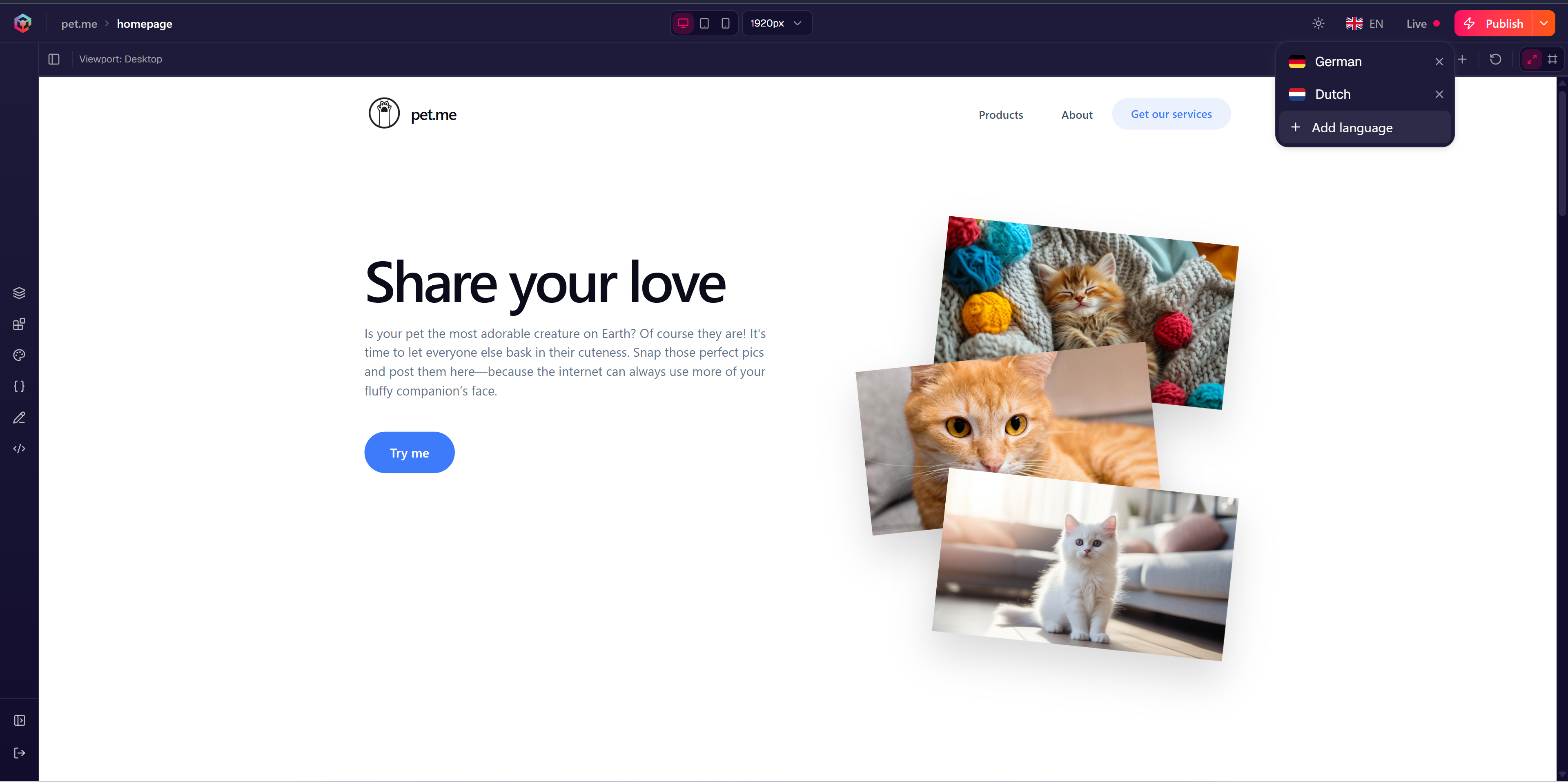 Adding a language will duplicate all the webpages of your Default Language.
Switching Language Views
To edit content for a specific localized audience, you must switch your active language context inside the Editor.
How to Toggle Your Language View
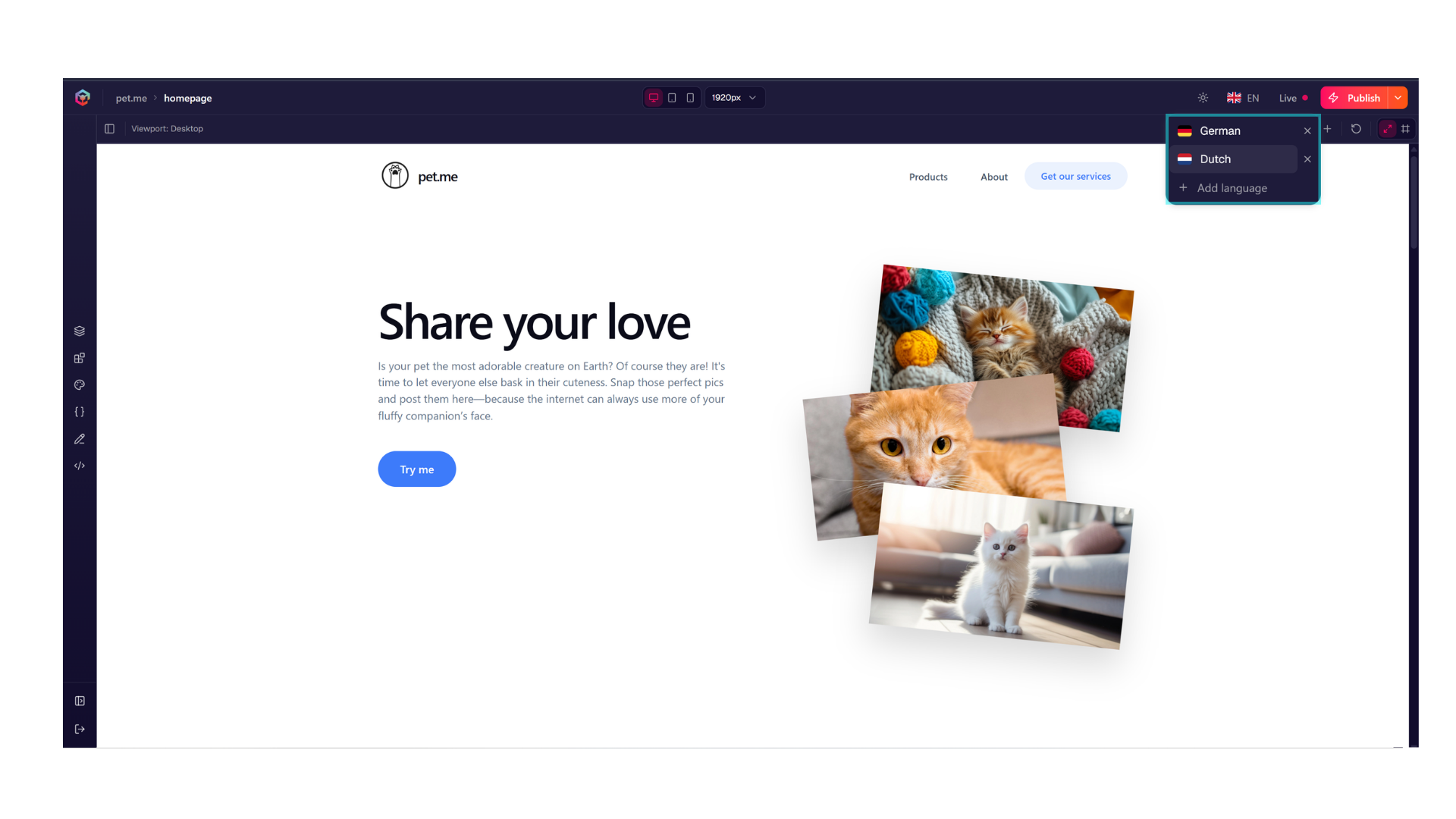
- Look for the Language Dropdown Selector in the toolbar at the top of the Editor canvas.
- Select the target language you wish to edit (e.g.,
Dutch). - The live staging canvas will instantly reload to display the translated version.
Switching to a language where the current page doesn't exist will show a dialogue asking you whether you want to create the equivalent page, or continue to that language's homepage.
✍️ Localizing Text & Media
When you change your language view, you are now working in that language's new context.
Translating Content Page-by-Page
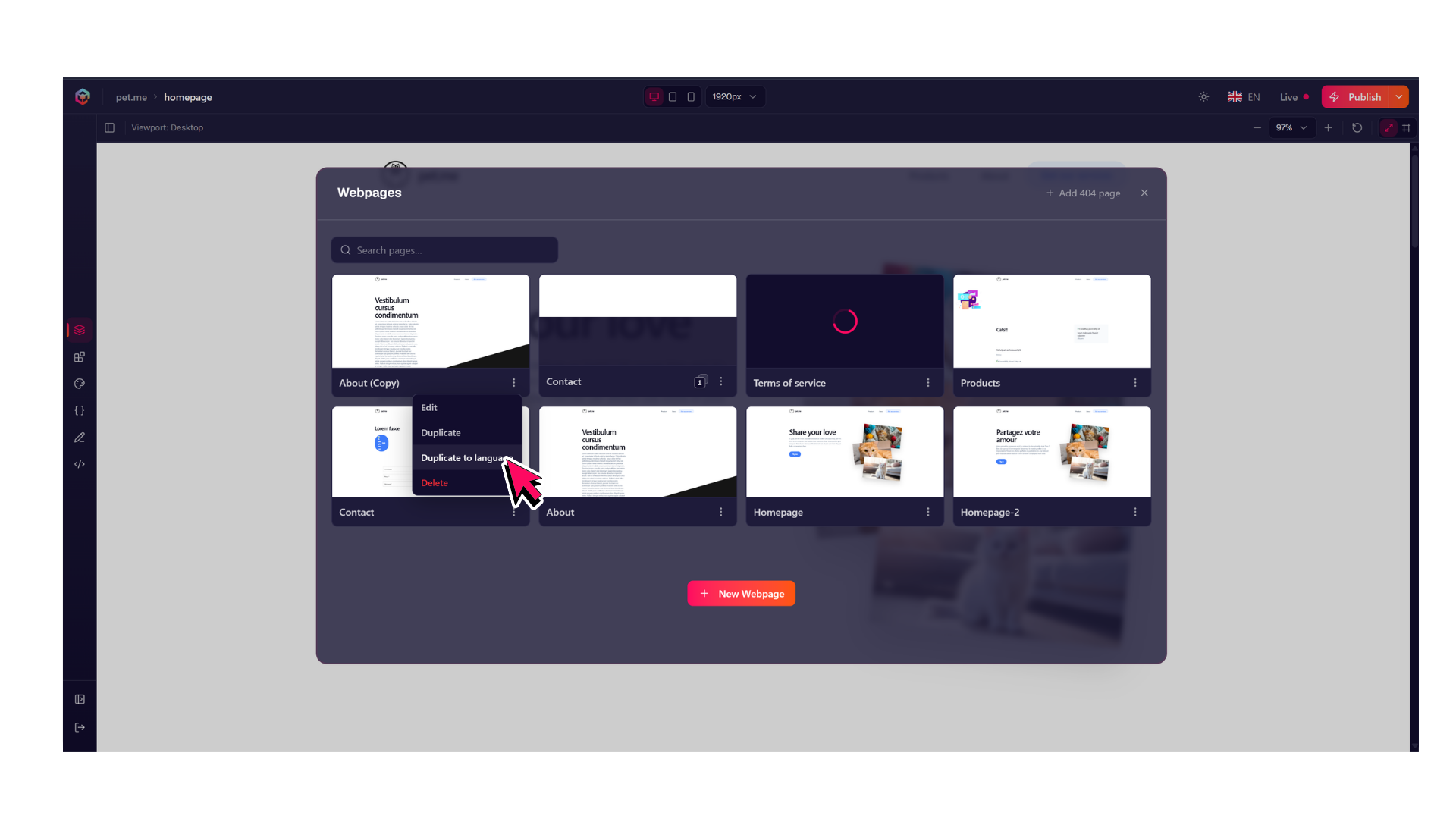
- Open the Pages modal via the left-hand sidebar.
- Click on the 3 dots icon on a Page.
- Select
Duplicate to language.
Translating Content Step-by-Step
- Ensure you have switched to your target translation language view.
- Find the Content you wish to modify.
- Replace the placeholder or default language copy with your translated text, or swap the asset for a localized file (such as an image containing text specific to that region).
- Your localized edits save automatically to that specific language profile.
Don't want to translate everything manually? Switch to your target language view, open a text field's configuration, click the AI Helper, and select Translate to... to instantly localize your default copy.
⚠️ Tips for Localized Pages
Because translation tracks are structural alternates of your default language, keep these design principles in mind while working:
- Layout Synchronization: You shouldn't add, delete, or rearrange Blocks while viewing an alternate language unless you explicitly want the translated copy to diverge significantly from the content of your default language.
- Automatic Page Allocation: When you create a new webpage in your primary language, Bloxsnap automatically provisions the translation alternate tracks behind the scenes. You never have to manually build duplicate page instances for other languages.