Structuring Your Site
This guide covers how to manage your website's architecture. You will learn how to create new pages, arrange them into folders, and configure essential Page settings like SEO metadata.
📄 Creating & Organizing Pages
Every URL route on your website (e.g., /about or /services/design) corresponds to a specific page entry managed
inside the Pages modal.
/homepage corresponds to /. It always exists by default.
How to Add a New Page
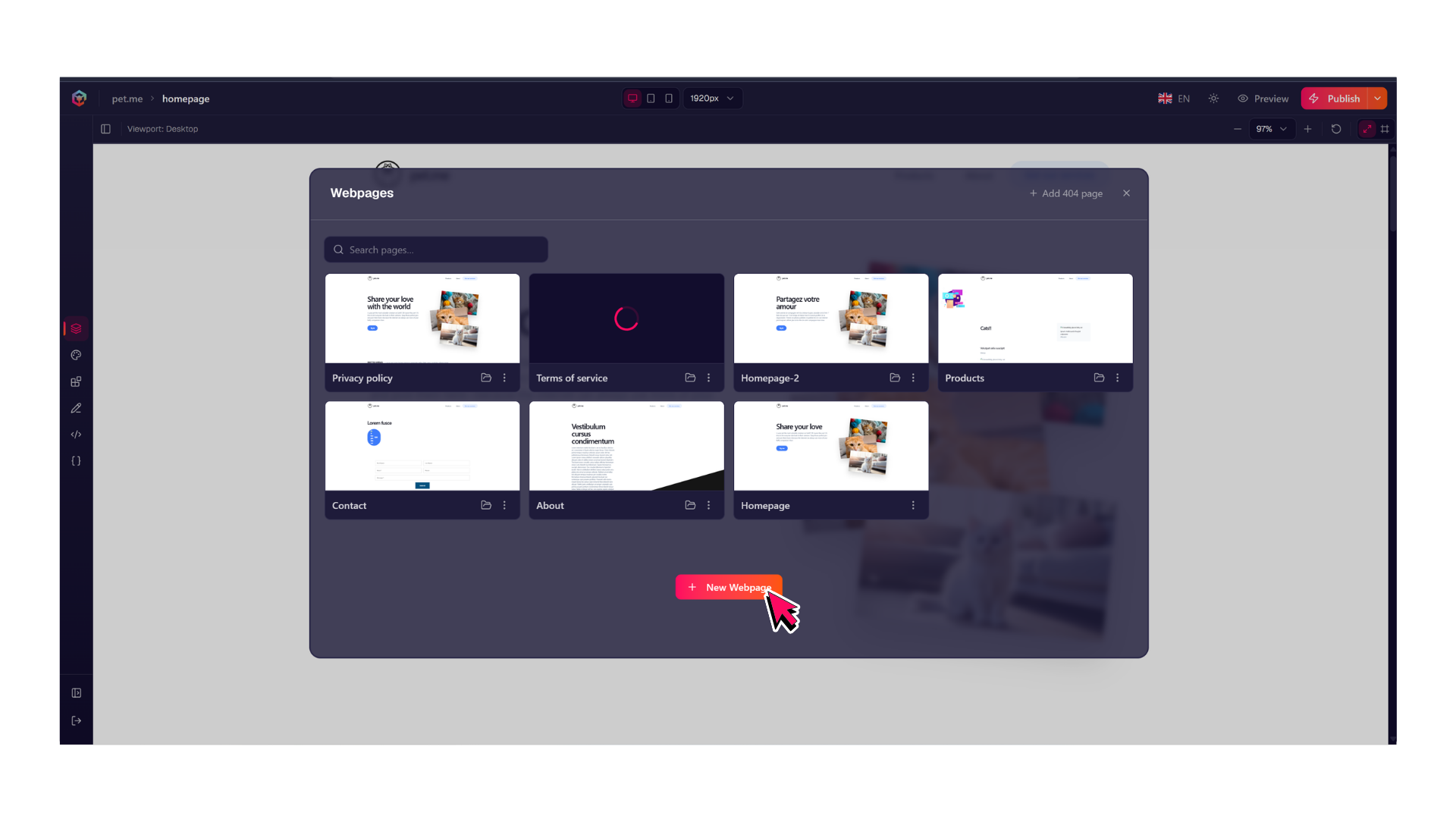
- Open the left-hand sidebar panel and select Pages.
- Click the + New Webpage button at the bottom of the modal.
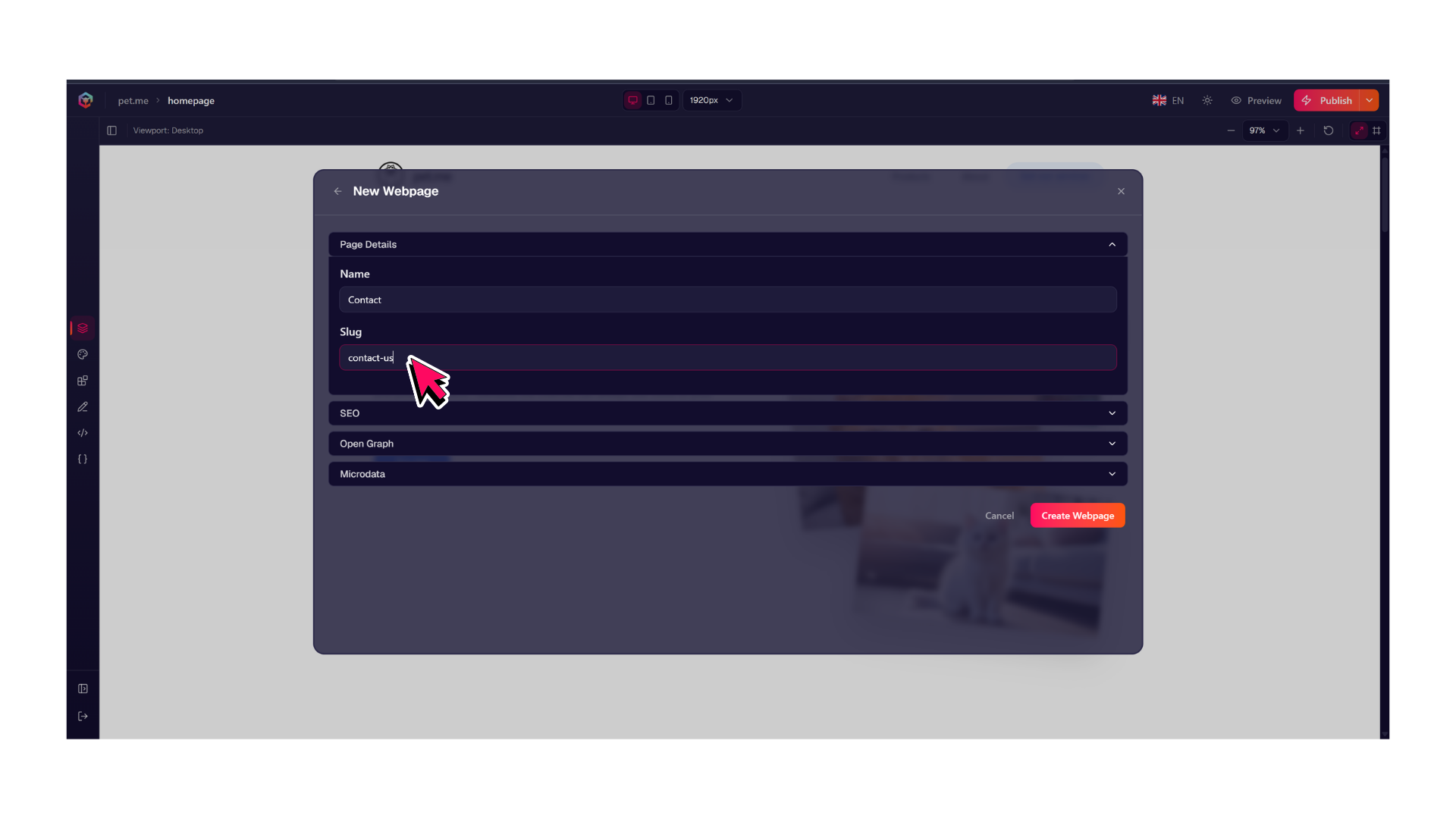
- Give the page a recognizable Name (e.g.,
ContactorAbout us). - Enter a Slug, which defines the exact path in the page's URL (e.g.,
contact-usorabout-us). - (Optional) Fill out any relevant SEO details, Open Graph tags, or microdata.
- Click Create Webpage, then select your newly created page from the list to begin editing.
Duplicating a Page
To clone an existing page layout and its contents:
- Click the 3 dots icon next to any page in the Pages modal.
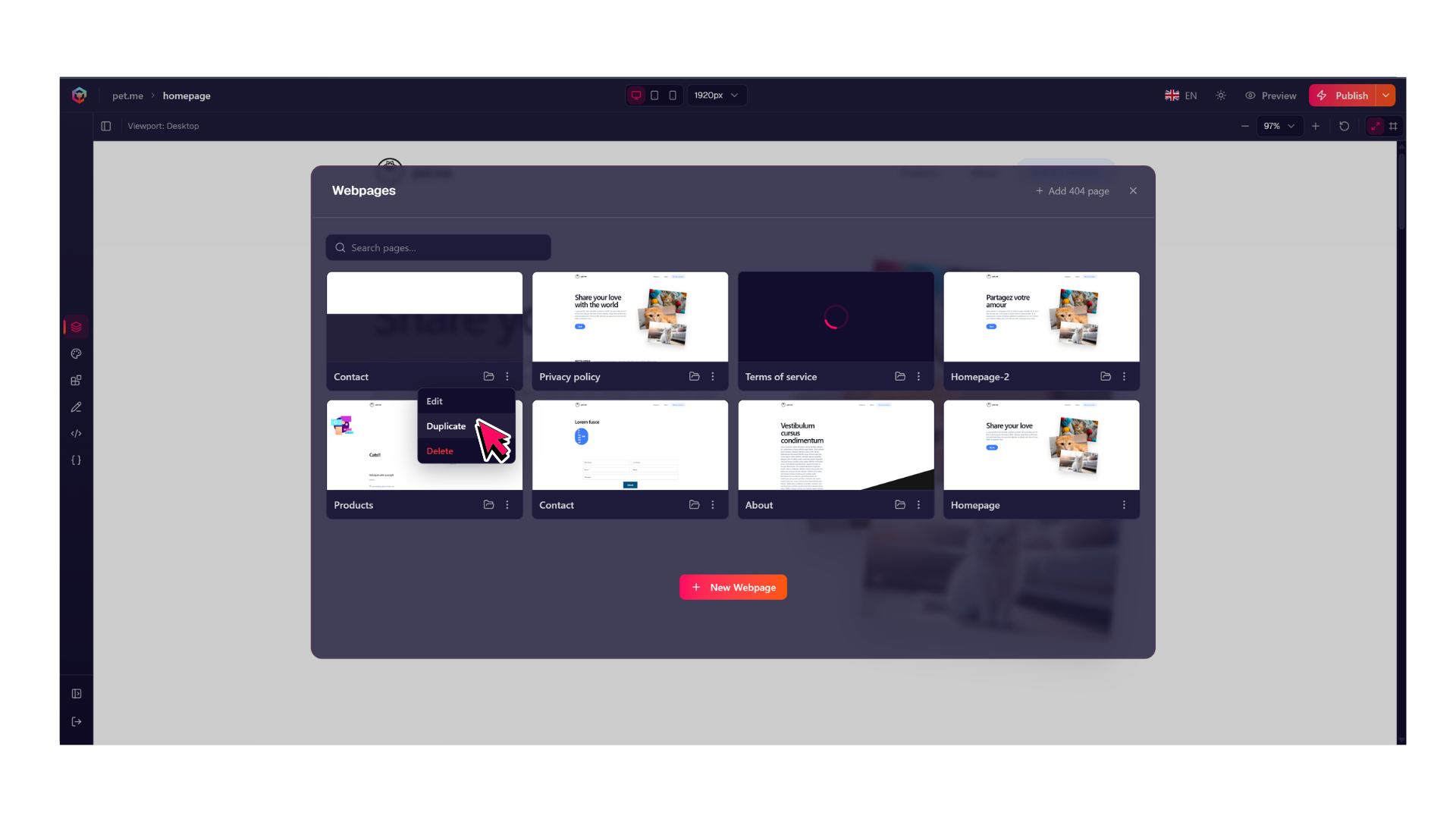
- Select Duplicate.
Duplicating a Webpage also duplicates any existing SEO information.
Editing/Renaming a Page
- Click the 3 dots icon next to any page in the Pages modal and select Edit.
- From there, you can change the page's URL or rename it.
Deleting a Page
To delete a page:
- Click the 3 dots icon next to any page in the Pages modal and select Delete.
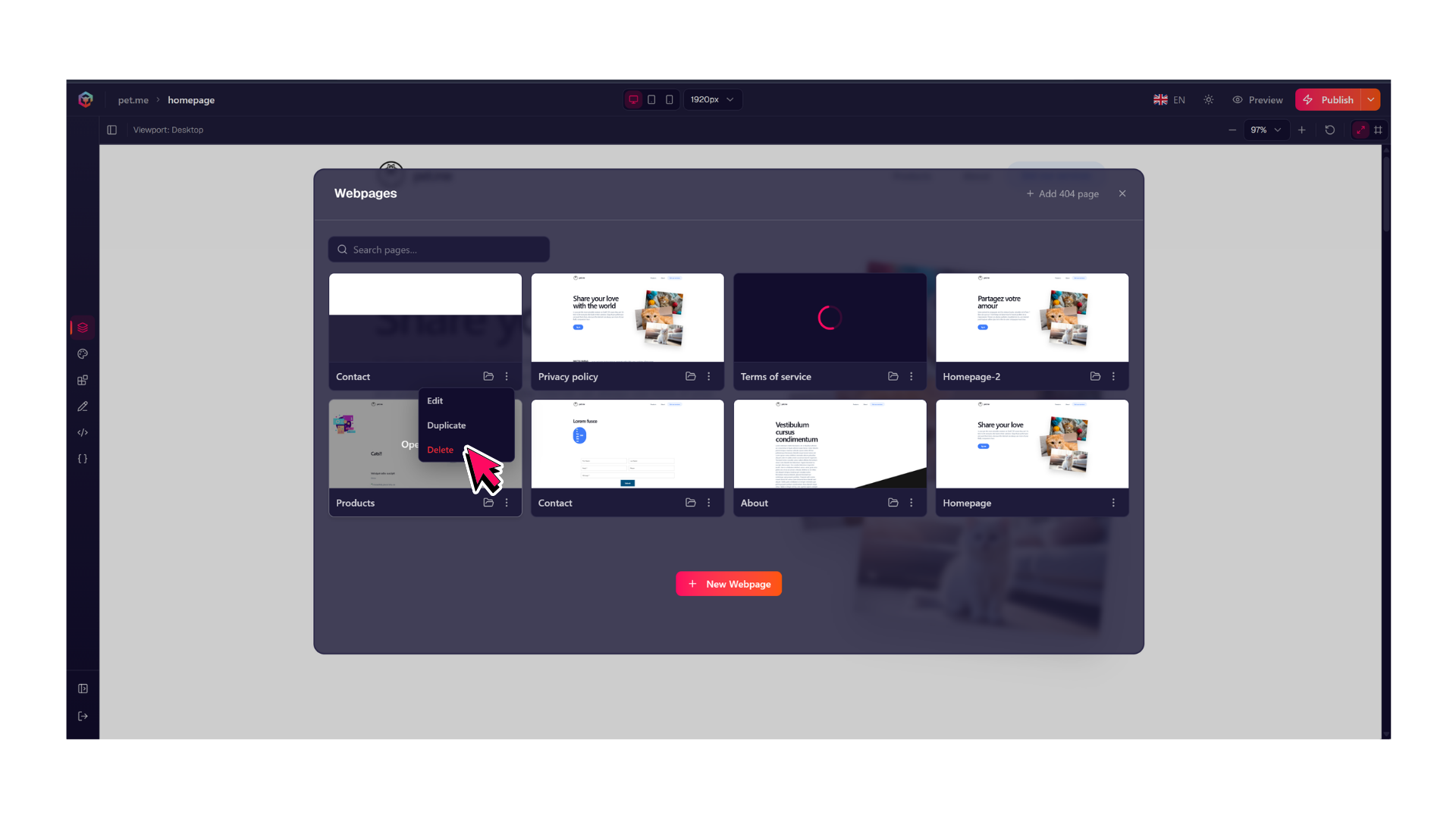
Once you delete a page and publish your changes, visiting that URL will permanently result in a 404 error for your visitors. Always ensure you update or remove any navigation buttons pointing to this page before deleting it.
Add a Custom 404 Page
When a visitor attempts to access a URL that doesn't exist on your site (or a page that has been permanently deleted), the server will automatically return a 404 Not Found page.
If you haven't created a 404 page or you've created one but it's empty, your website will default to a generic 404 page. However, creating a custom 404 page is highly recommended to maintain brand consistency.
How to Create a Custom 404 Page
To create a custom 404 page:
- Open the left-hand sidebar panel and select
Pages. - Click the
+ Add 404 Pageat the top-right of the Page Modal.
📂 Nesting Pages (Using Folders)
To build organized site hierarchies—such as grouping individual services beneath a clean sub-path
(e.g., /services/web-development)—you can nest your webpages inside folders.
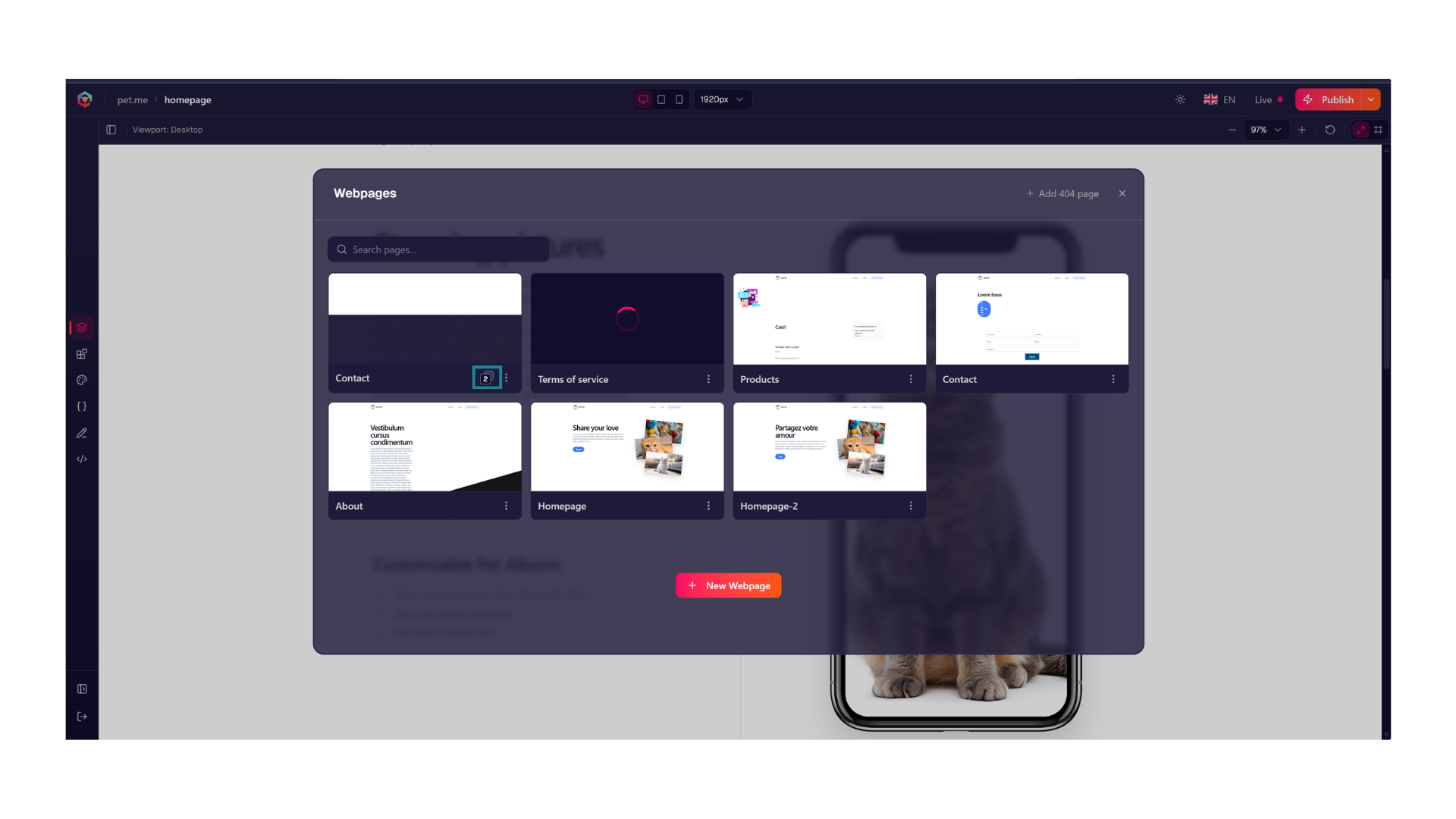
The amount of nested pages is indicated by a number in the bottom-right, as shown below.
How to Create a Nested Path
- Open the left-hand sidebar panel and select Pages.
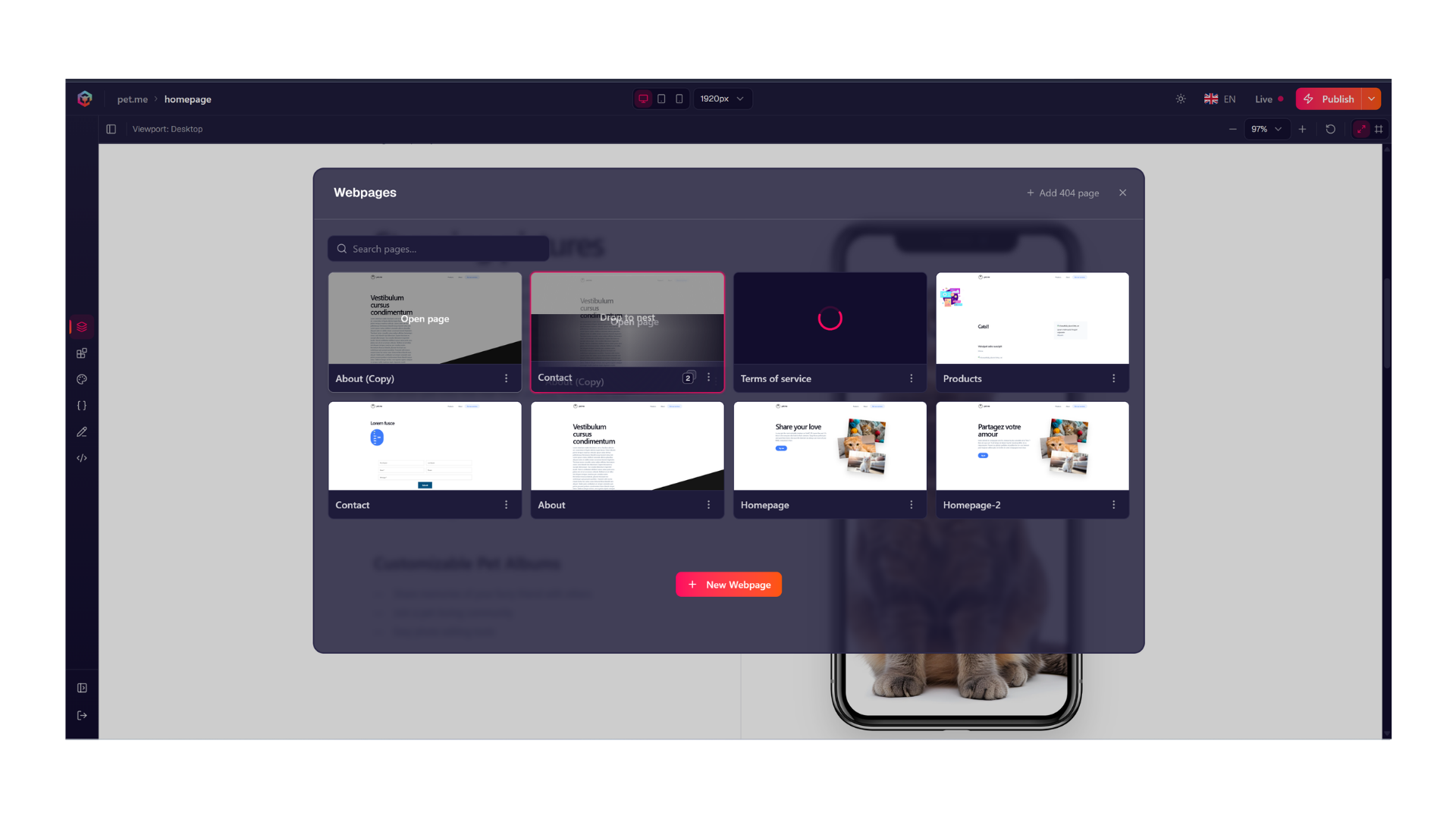
- Drag the Page you want to nest onto any other Page.
Moving a Nested Page
If you need to reorganize your existing page positions or move them out of a sub-directory:
- Open the Pages modal and navigate to the appropriate subpage directory.
- Nest inside a Page: Drag the target page directly onto another page entry.
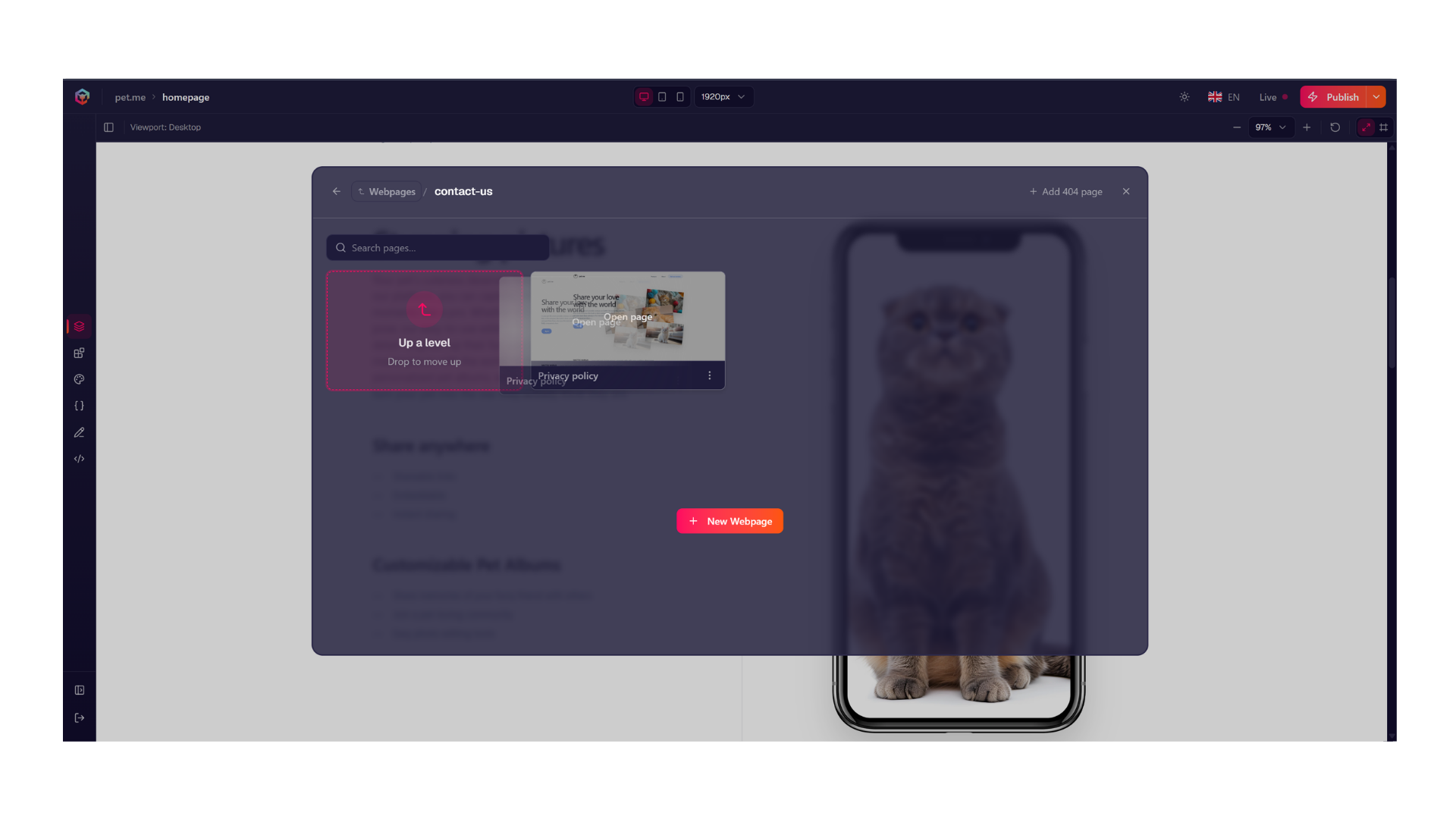
- Move to a higher directory: Drag the target page directly onto the
Up a Levelthumbnail.