Managing Content
Welcome to the Bloxsnap Editor! This guide will show you how to safely various types of content on your website, such as text, images, and links.
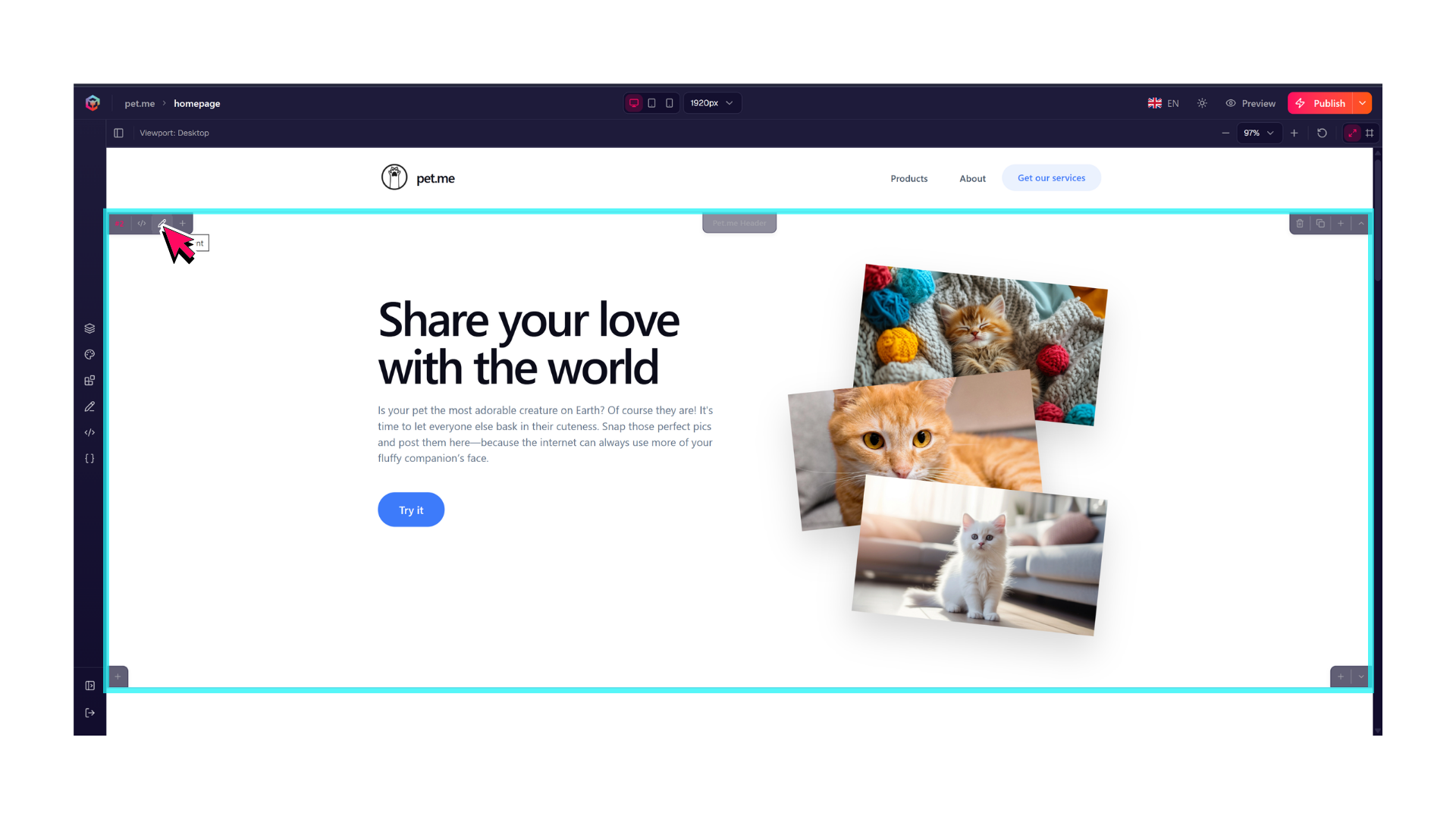
Every element on your page lives inside a visual container called a Block. To modify any piece of content, simply click the pencil icon on the Block, as shown below.
✍️ Editing Text
Changing text on your website is as simple as typing or pasting text into the designated field.
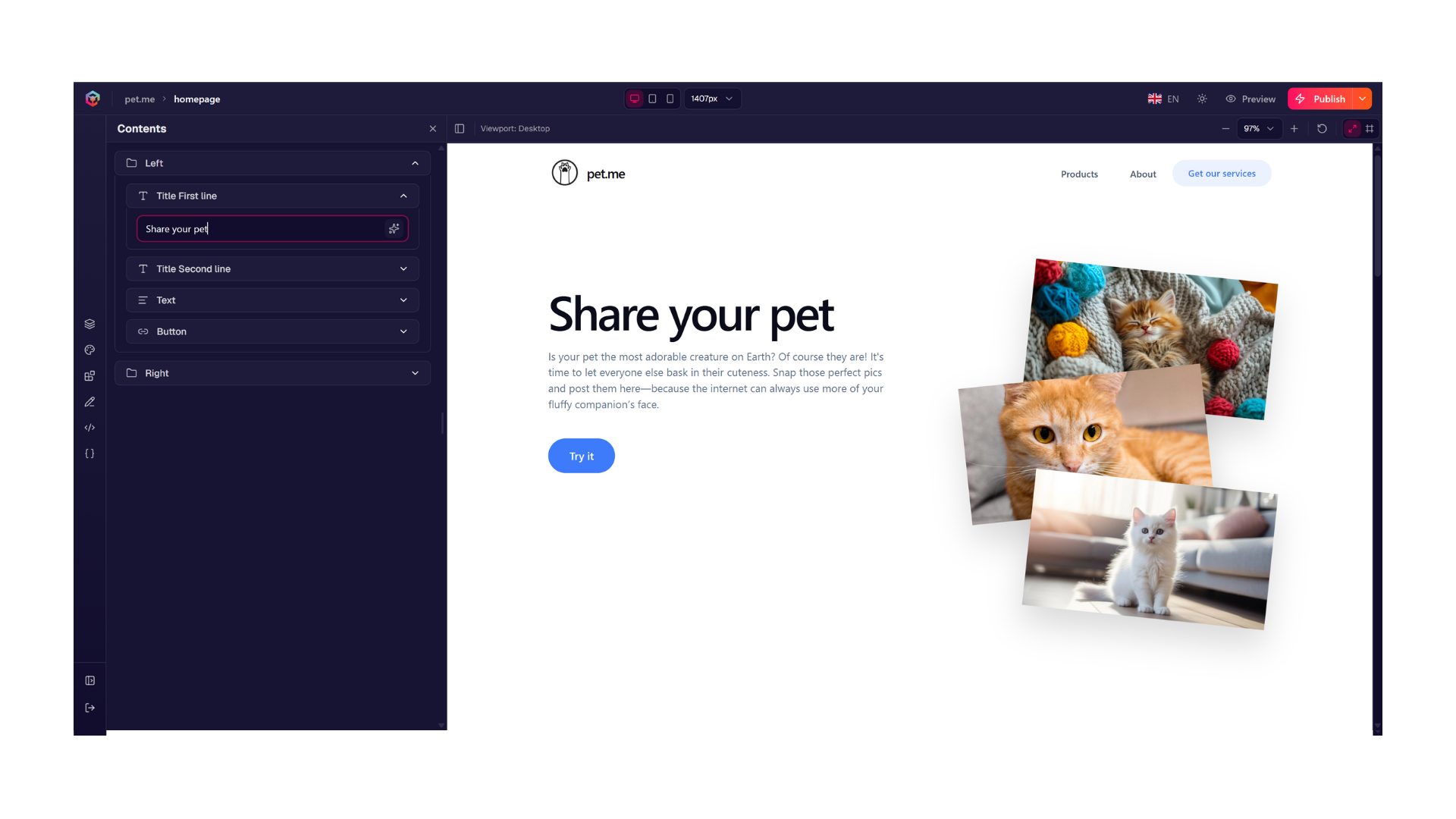
Your changes are automatically saved as you type. If you made a mistake in a text field, you can use Ctrl + Z to
undo it.
AI Actions
You can use the built-in AI Helper in text fields to quickly manipulate selected text.
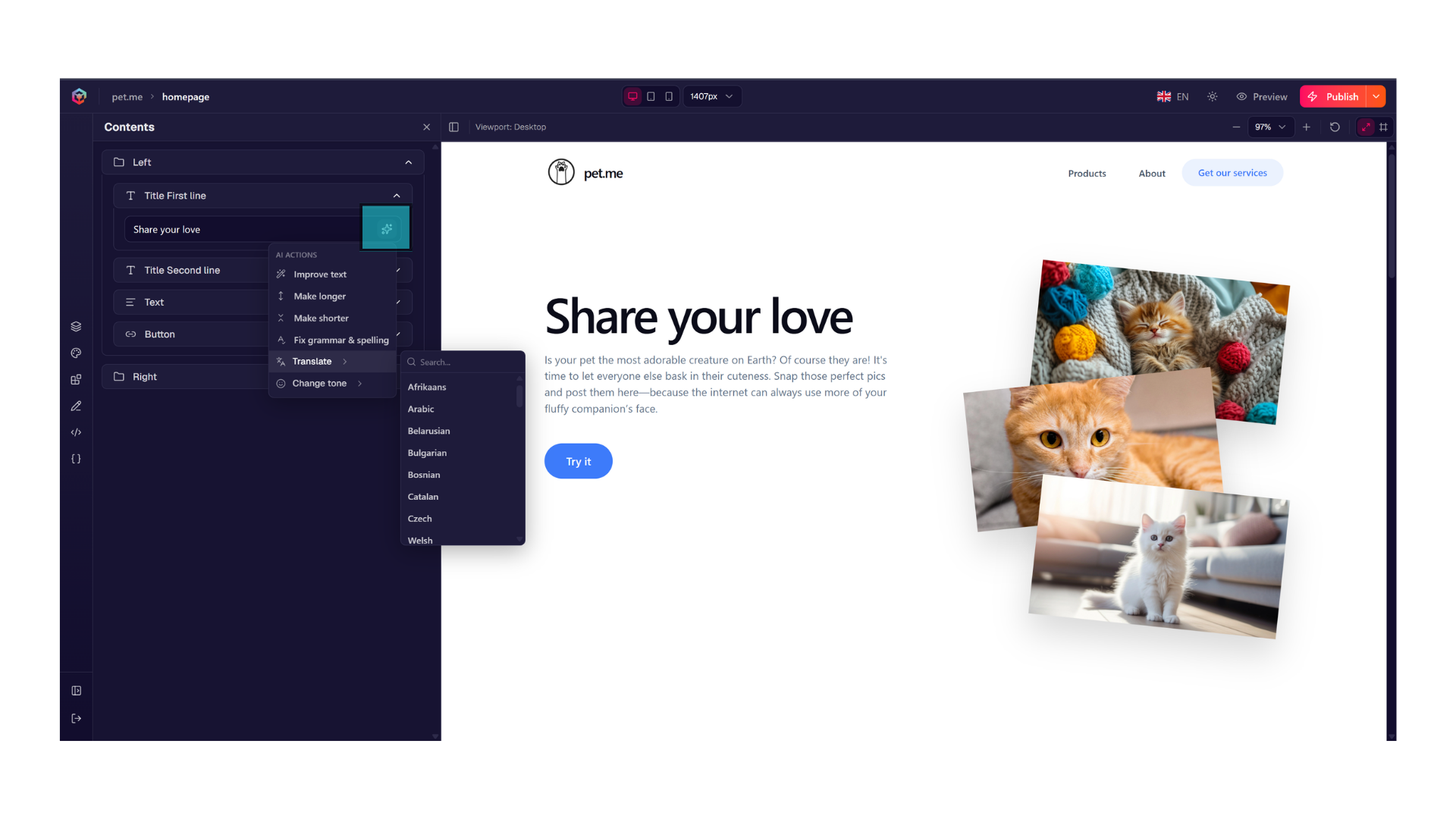
You can use the AI Helper to:
- Improve Text: Automatically refine the style and clarity.
- Make Longer / Shorter: Expand or condense the copy to fit your layout.
- Fix Grammar & Spelling: Instantly correct typos and syntax.
- Translate: Convert your copy into any supported language.
- Change Tone: Shift the voice (e.g., to Professional, Casual, or Confident).
🖼️ Uploading & Managing Images
Bloxsnap handles image optimization automatically in the background, ensuring your images load instantly on mobile devices without slowing down your site.
How to swap or upload an image:
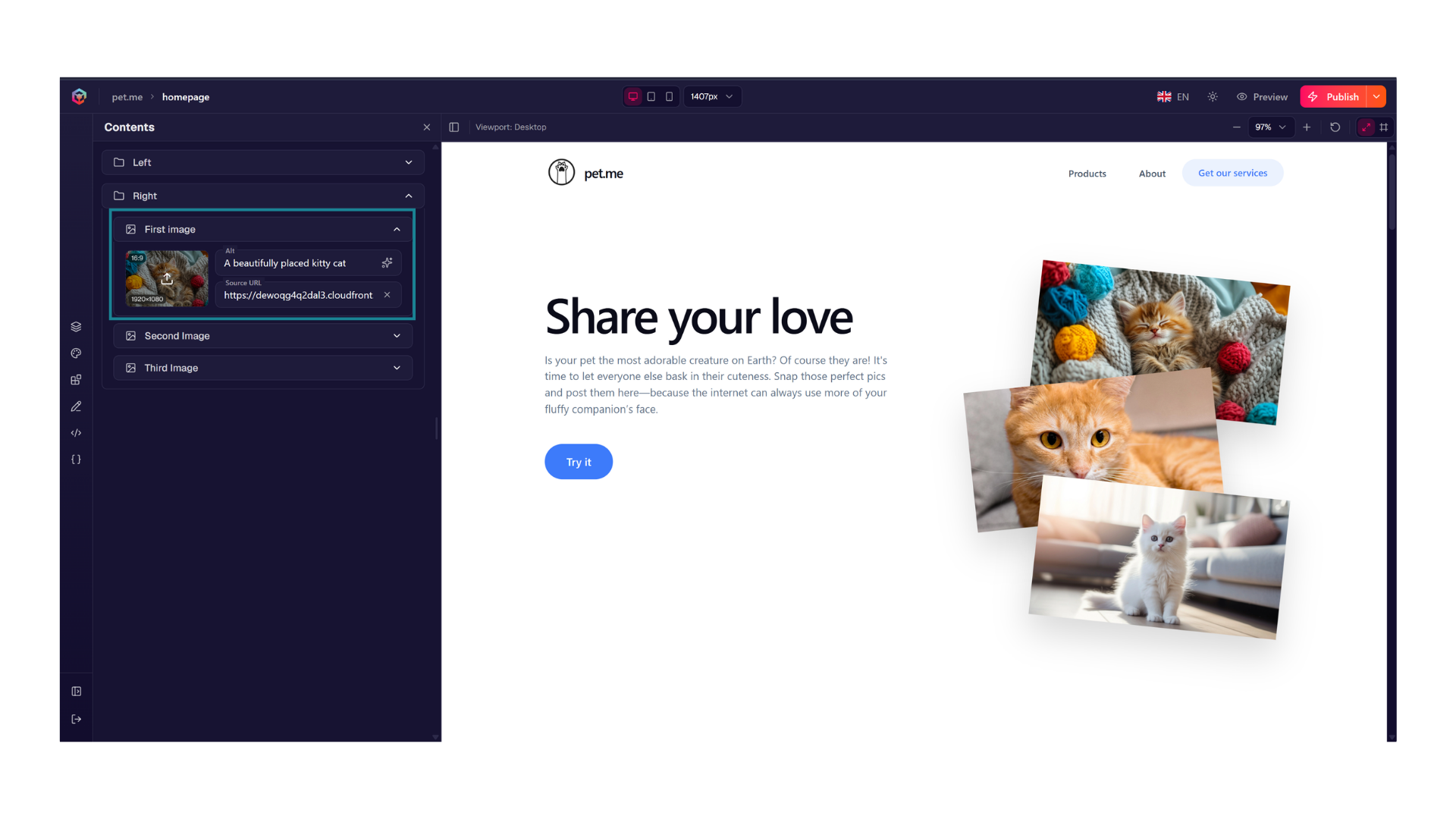
- Hover over the image and click it once.
- Select a replacement file from your computer or asset library.
- The platform will instantly upload the asset and display your new image directly on the canvas.
Best Practices for Images
- Don't Forget Alt Text: Always fill out the Alt Text (Alternative Text) field in the sidebar. This describes the image for visually impaired users and significantly boosts your site's search engine ranking (SEO).
- Mind the Aspect Ratios: Replacing a square image with a tall vertical image may shift your page layout. Try to match the general proportions of the original placeholder.
🔗 Updating Links & Buttons
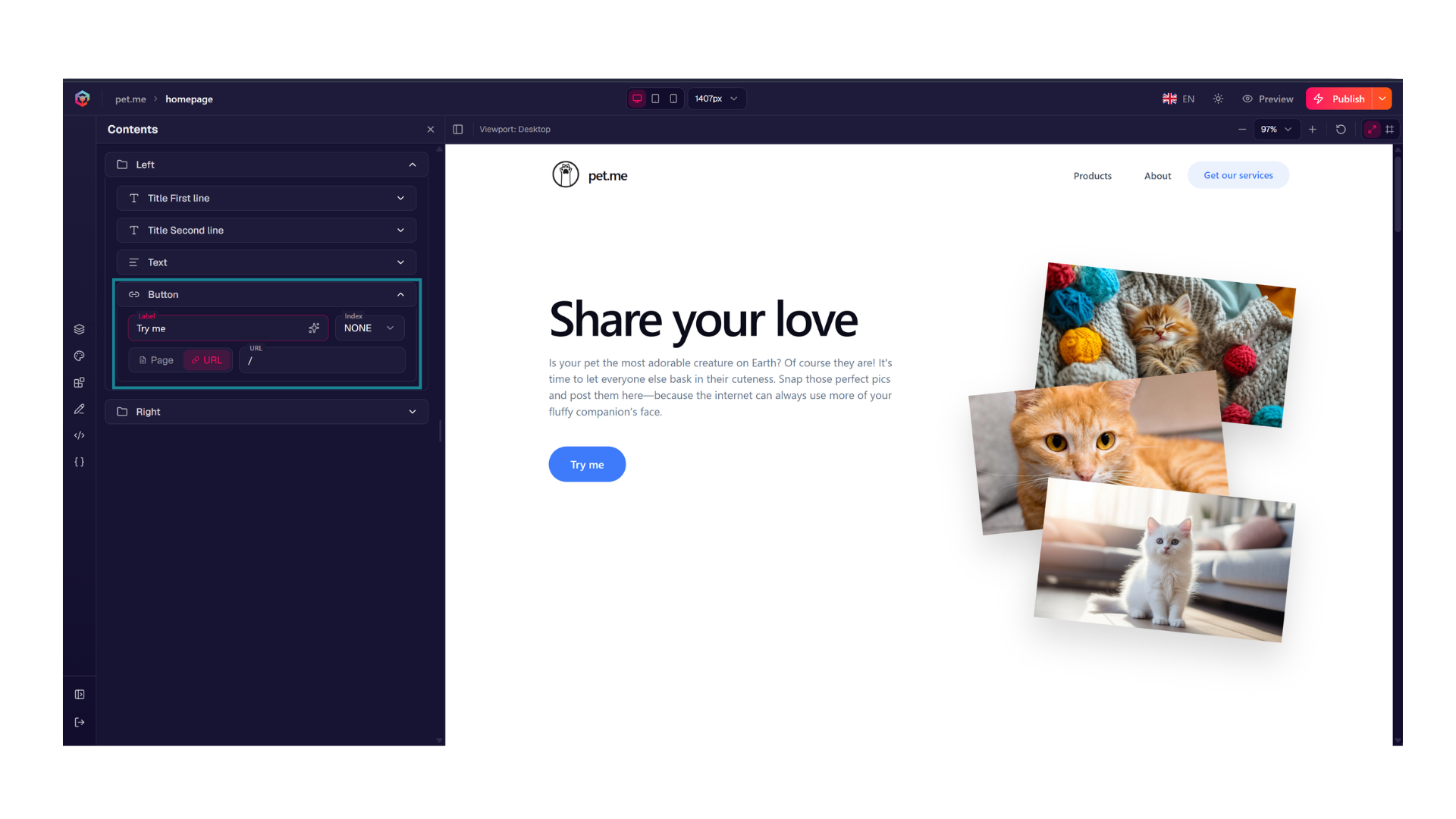 Buttons and hyperlinks guide your visitors to internal pages, contact forms, or external websites.
Button Labels
The text displayed on a button is controlled by a field called Label. To change what the button says, simply edit the text inside this field.
Choosing Your Link Type
When configuring a button or hyperlink, you can set the destination to:
- Internal Page: Route visitors to another page within your current website (e.g., your
/aboutor/contactpage) using optimized internal routing. - External URL: Paste a full web address (e.g.,
https://google.com) to direct users to an entirely separate website.
🛑 Changes & Going Live
Changes made inside the Editor are automatically saved as a draft, meaning your live website visitors cannot see your edits while you are working.
Pushing Changes Live
When you are completely satisfied with your updates, click the Publish button (the lightning bolt icon) in the upper right-hand corner. Within seconds, your updates will be optimized, compiled, and visible to the world.
You can use the Live button to review your site layout exactly as visitors will see it, even before you have connected a custom domain. Note that this is based on your last published state.